Mastering Ashes of Creation Settings on Launch Day
Last updated on December 11, 2025 by MMOJUGG Team | Game: Guide | Tags: Ashes of Creation General
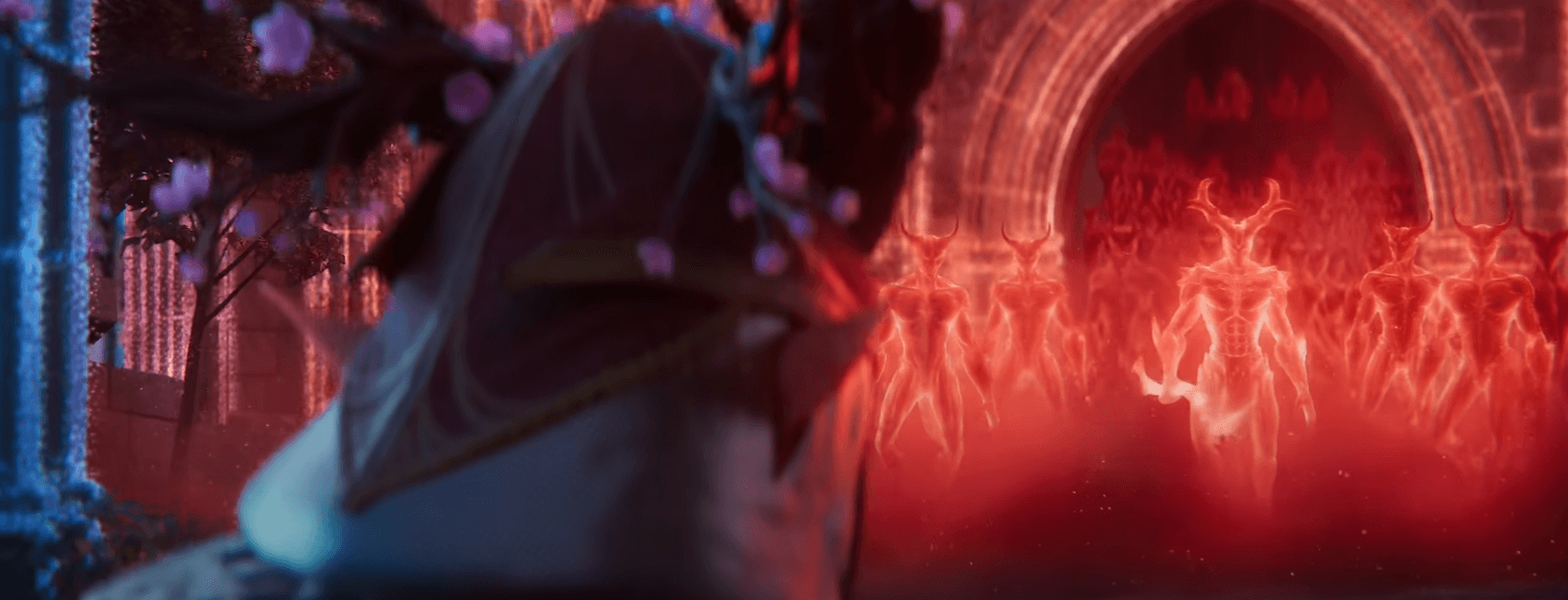
As you step into the dynamic realms of Verra in Ashes of Creation Early Access on Steam, fine-tuning your setup can transform a chaotic launch into a seamless adventure. Imagine effortlessly navigating intense skirmishes or unraveling ancient mysteries without interface frustrations holding you back.
For those moments when you need an edge, consider bookmarking this guide for quick reference and exploring our Ashes of Creation Shop to stock up on essentials that keep your momentum going.
Optimizing Graphics for Immersive Worlds
Launching into Early Access means embracing Verra's breathtaking landscapes, but the default graphics can sometimes trip up newcomers with performance hiccups or visual glitches. Access the options menu by hitting Escape, then dive into the Display and Graphics tabs to set your resolution—aim for native if your rig handles it, or scale down for stability on mid-range hardware.
A frequent pain point is Global Illumination, powered by Unreal Engine 5's Lumen system, which simulates realistic light bounces for those epic sunsets over the Anvil biome or shadowy delves in Scarabsong Hollow. At Epic settings, it might introduce grainy artifacts, flickering shadows, or unnatural fog, especially in Phase 3's revamped starting zones launched August 26, 2025. Players report dropping it to Medium resolves 80% of these issues without sacrificing too much detail, boosting FPS by 20-30% in dense areas like Befallen Forge. For AMD users like those with RX 6800, pair this with Balanced Super Resolution to cut down on that sandy overlay, while NVIDIA folks might lean on DLSS for smoother upscaling.
Experiment in safer zones first: Toggle View Distance to High for spotting distant caravans during node rushes, but dial Foliage to Medium if you're farming in overgrown Riverlands to avoid pop-in distractions. These tweaks not only prevent headaches but enhance immersion, letting you focus on carving your legacy rather than wrestling with visuals.
Graphics Setting | Recommended for Beginners | FPS Impact | Visual Benefit |
|---|---|---|---|
Global Illumination | Medium | +25% | Reduces grain/flicker in caves/biomes |
Super Resolution | Balanced | Minimal | Smoother motion without blur |
Shadow Quality | High | -10% | Better enemy spotting in low light |
Foliage Quality | Medium | +15% | Clear paths in dense areas |
Streamlining Combat for Dynamic Battles
Combat in Ashes pulses with risk and reward, from solo goblin hunts to guild-wide sieges, but mismatched settings can flag you unintentionally or leave you exposed. Under Gameplay > Combat, start with Auto-Attack: Enable it post-ability for PvE efficiency, like chaining Ranger shots on mobs, but disable in PvP to maintain combo flow—unwanted swings have cost many a duel in Phase 3's intensified open-world clashes.
PvP flagging remains a cornerstone, evolving since early Alpha waves. Default to PvE checkboxes: "Friendly Fire Prevention" and "Heal Avoidance" keep you green (non-combatant) around allies, avoiding accidental flags during group quests. For readiness, search "PvP" in the bar to swap—uncheck those and tick "PvP Enabled" for purple (combatant) status, enabling AoE hits on nearby foes without extra steps. This shines in caravan ambushes, where spillover damage can turn tides, but watch the new "May Hit Non-Targeted Combatants with AoE" toggle (default off) to curb mishaps.
Damage text customization aids readability amid chaos—enlarge for color-blind friendly palettes or tint heals green for quick scans. As Phase 3 amps scarcity-driven PvP, these ensure you're reacting, not recovering from flags.
Flagging Mode | Default State | Switch For | Risk Level |
|---|---|---|---|
Non-Combatant (Green) | Checked PvE boxes | Safe farming | Low (no penalties) |
Combatant (Purple) | PvP Enabled on | Open clashes | Medium (reduced death penalties) |
Corrupted (Red) | Kill non-combatant | Avoid unless intentional | High (gear loss) |
Enhancing Targeting for Group Synergy
Targeting evolves your playstyle, especially in raids where clerics juggle heals and tanks peel threats. In the Targeting tab, "Allow Dual Defensive and Offensive Target Lock" is a game-changer—off for solo declutter, on for supports tracking an ally's buffs while DPSing a boss add. Picture a Harbinger raid (November 18, 2025 update): Lock the Ancient One offensively, your Bard defensively below—hotkey swaps keep heals flowing without retargeting.
Party/Raid frames: Toggle Party for duos, Raid for 40-man ops to monitor HP bars efficiently. With Phase 3's faster settlement growth, these prevent wipes from overlooked debuffs like Burning DoTs in corrupted breaches.
Mastering Keybinds for Fluid Control
Keybinds are your command center—intuitive setups from other MMOs translate well, but Early Access's depth demands prioritization. In Keybinds, Movement (WASD) mirrors standards, but shine in Targeting: Bind "Target Nearest Enemy (Tab)" for 50-100m scans around terrain, ideal for fog-shrouded PvP ambushes.
"Target of Defensive Target" chains to your ally's focus—vital in PvP shot-calls, pairing with dual lock for seamless switches. Raid Markers (1-8 via "Mark") coordinate pulls, while "PvP Force Flag (Alt + hold F)" bypasses toggles for instant purple status, though hold order matters to avoid glitches. Best practice: Use modifiers like Shift for backwards cycles (e.g., Cycle Targets Backwards) to navigate clusters without mouse strain. Test in low-stakes zones; remap for your archetype—Fighters favor action-mode toggles for melee fluidity.
Keybind Category | Essential Bind | Best Use | Pro Tip |
|---|---|---|---|
Targeting | Nearest Enemy (Tab) | Scout hidden threats | Directional scan in buildings |
Chain Targeting | Defensive Target's Target | PvP follow-ups | Pair with dual lock |
Flagging | PvP Force (Alt + F hold) | Quick engagements | Reverse hold to drop flag |
Markers | 1-8 (via Mark) | Group calls | Visual icons for PvE/PvP |
Interaction and Camera for Seamless Exploration
Interface Menus demand four Interact binds: F for NPCs/gathering (core chats, vendors), G for mounts/dismounts—crucial in Phase 3's expanded biomes where swift travel dodges ganks. Dialogue branches (F6/F7) handle dialogue branches; mouse as backup saves thumbs. Popup binds ("Greet"/"Pass") blitz loot windows in busy drops.
Camera tweaks: Free zoom for scouting, bind "Toggle Action Mode" (default none) for tanks—shifts to free movement mid-fight, echoing third-person action fluidity. Mount Flourish (Shift + X) adds flair to parades, per recent defaults.
Handy Miscellaneous Adjustments
Misc tab covers edge cases: Unstuck via Escape (no bind needed). Tooltip Lock reveals DoT details like Burning's extra DPS—hover, lock, learn. These small wins compound in long sessions, from unsticking in sieges to dissecting skill trees mid-upgrade.
Interface Polish for Personal Touch
General: Enable map marking for group pings—vital in node defenses. Max nameplate distances (players/NPCs) for early threat ID. Action Bars: Show preferred sets, hide empties for clean screens. Chat: Fade backgrounds for subtlety, color-code logs (e.g., heals blue). Accessibility scales visuals intuitively, suiting varied playstyles.
Nameplate Strategies to Cut Clutter
Nameplates balance info and sanity—max distances first. Tailor tabs: Always show allied/group HP for synergy, PvP foes for damage tracking (skip mounts to focus players). Friendly NPCs below 100% HP avoids overload; Enemy NPCs always for combat cues. In corrupted zones, this setup spotlights real threats amid chaos.
Nameplate Type | Visibility Rule | Why It Helps |
|---|---|---|
Allies/Groups | Always | Instant heal targets |
PvP Foes | Always (players only) | HP reads in duels |
Friendly NPCs | <100% HP | Declutter safe areas |
Enemy NPCs | Always | Mob awareness |
Unlocking HUD Editor Potential
The HUD Editor empowers personalization—drag bars, scale via icons, toggle grid/snap for OCD-perfect layouts. Save profiles: PvE compact, PvP expanded with central frames for that "eyes on action" look. Test dummies help preview; load raid-specific for Harbingers. With Phase 3's UI refinements, it's never been easier to craft a HUD that feels like home.
FAQs on Ashes of Creation Settings and Graphics
1. Why does global illumination cause grainy visuals in Early Access, and how to fix it?
Lumen's ray-tracing simulates bounces but amplifies noise on AMD cards or in biomes like Anvil's—set to Medium for clarity, gaining 20-30 FPS without dimming Verra's glow, as patched in February 2025.
2. How do I avoid accidental PvP flags while grouping?
Stick to PvE defaults ("Friendly Fire Prevention" checked), and keep "AoE Non-Targeted" off—search "PvP" for swaps. This prevents heals or spills flagging you green in Phase 3's busy POIs.
3. When should I enable dual target lock?
For healers or PvP coordinators—tracks enemy up top, ally below for hotkey heals. Off for solo to reduce clutter; on shines in raids like the November 2025 Harbinger.
4. What's the trick to reliable PvP Force Flagging?
Hold Alt then F to flag purple; reverse (hold F then Alt) to drop. Simple taps glitch—use for instant AoE readiness without menu dives.
5. How customizable is the HUD Editor really?
Fully: Drag/scale elements, save profiles (e.g., raid vs. PvE), grid-snap for alignment. Community pushes for test modes to preview all at once, per 2025 forums.
6. Best keybind practices for movement and targeting?
WASD base, Tab for nearest enemy (50m+ scans), modifiers for backwards cycles. Remap per class—melee favors action toggles; test to avoid overlaps, as defaults evolve per August 2025 guide.
Thanks for Reading
With these insights, your Verra exploits will flow smoother than a well-timed Bard melody—keep following MMOJUGG for the latest on Early Access evolutions and beyond.
You may also like: Get started smoothly in Early Access with optimal settings, launch tips, and safety guides for new players.
Looking for more Ashes of Creation Guides?
Get the latest class tier lists, gold farming routes, node progression tips, combat mechanics, and roadmap updates—all in our comprehensive hub.
👉 Visit Our Ashes of Creation Hub