Path of Exile 2 Asynchronous Trading Mastery Guide
Last updated on September 3, 2025 by MMOJUGG Team | Game: Path of Exile 2 Guide | Tags: The Third Edict
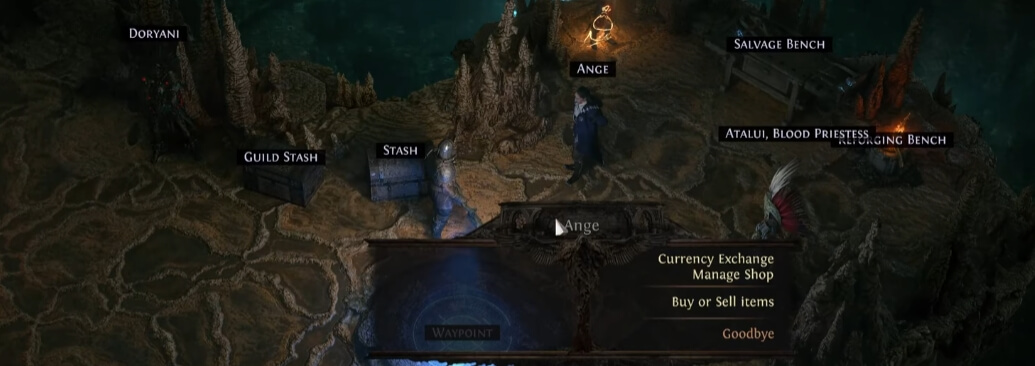
Asynchronous trading in Path of Exile 2 has revolutionized how players exchange items, offering a seamless way to buy and sell gear without constant interaction. Whether you're a free-to-play adventurer or a supporter pack enthusiast, this guide breaks down everything you need to know about unlocking and mastering the trading system. Curious about getting started? Keep reading to learn the mechanics, tips, and step-by-step processes to trade like a pro. For more Path of Exile 2 tips and to gear up with currency or rare items, bookmark our site and explore our Path of Exile 2 shop for top-tier currency and unique gear.
Unlocking Asynchronous Trading
To dive into asynchronous trading, you first need to unlock the feature, which depends on your account status—free-to-play or supporter pack owner.
Free-to-Play Players
Progress through the story until Act 4, where you'll need to clear specific areas, such as the corner islands (e.g., Waka Panu Island). Completing these unlocks the Shoreline Hideout, where NPC Angie appears with the "Manage Shop" feature. This typically takes 2-3 hours longer than the supporter pack route, depending on your pace.
Supporter Pack Owners
If you've purchased a supporter pack (e.g., Dreadnought or Beacon of Salvation Hideout) or are a returning player with prior hideouts, you gain access earlier. Upon entering Act 4's King's March, Angie will be available near Tujen. Interact with her to teleport to your hideout and enable trading instantly.
Once unlocked, Angie becomes your go-to NPC for managing your shop. Access her via the edit screen in your hideout, where she's listed among your NPCs.
Setting Up Your Shop: The Selling Process
To sell items, you'll need Premium Merchant Stash Tabs, available in the microtransaction shop. These are distinct from Premium Quad Stash Tabs, which don't support trading. Here's how to get started:
1. Purchase Merchant Tabs
Head to the microtransaction shop and buy Premium Merchant Stash Tabs. Bundles often offer deals like “buy one, get one free," making it cost-effective to grab multiple tabs for passive selling.
2. List an Item
Open a Merchant Tab, select an item (e.g., a Crucible Tower Shield), and use Ctrl+Left Click (on PC) to set a price in your preferred currency, such as Chaos Orbs or Exalted Orbs. Once listed, the item locks temporarily to prevent market manipulation.
3. Collect Earnings
Sold items generate notifications, and earnings appear in the “Earnings" tab. Claim your currency with a simple click, though a brief cooldown may apply before withdrawing recently listed items.
Tip: Stock up on multiple Merchant Tabs to list more items and maximize passive income, especially overnight. Be aware that post-launch, you can't convert regular Premium Stash Tabs into Merchant Tabs, so plan your purchases carefully.
Buying Items: Navigating the Market
Buying is straightforward and doesn't require an unlocked hideout. Access the Market Panel via the menu (look for the three-line icon) and follow these steps:
1. Filter Your Search
Use the Market Panel to search for items, like a +4 Cold Spell Skills Wand. Apply filters for rarity, mods, or currency type (e.g., Exalted Orbs). Note that some filters, like +4 modifiers, may be buggy—try setting a lower threshold (e.g., +3) to work around this.
2. Browse and Compare
Sort results by price to find deals. Check the seller's shop for additional items, as you might spot complementary gear.
3. Purchase
Select an item, review the price (e.g., 1 Exalted Orb), and travel to the seller's hideout to confirm the purchase. Once bought, items can't be resold immediately, so choose wisely.
Tip: Early in the league (within the first 12 hours), high-demand items like +4 wands may be scarce. Be patient and check listings regularly for the best deals.
Key Tips for Trading Success
Act Early: Supporter pack owners can trade as soon as Act 4 begins, giving them a headstart in the economy.
Monitor Prices: Use the Market Panel to gauge item values and avoid overpricing or underselling.
Avoid Bugs: If filters don't work (e.g., +4 mod searches), tweak settings or check back after patches.
Maximize Tabs: More Merchant Tabs mean more listings, increasing your chances of passive sales.
Plan Purchases: Since bought items can't be resold immediately, prioritize gear that fits your build's immediate needs.
FAQs About Asynchronous Trading in Path of Exile 2
When can I unlock asynchronous trading as a free-to-play player?
You'll unlock it in Act 4 after clearing the corner islands, like Waka Panu, which grants access to the Shoreline Hideout and Angie's shop feature.
Do I need a supporter pack to trade early?
No, but supporter pack owners unlock trading at the start of Act 4, saving 2-3 hours compared to free-to-play players.
What are Premium Merchant Stash Tabs, and why do I need them?
These tabs allow you to list items for sale in your shop. They're essential for selling and can be purchased in the microtransaction shop.
Can I convert regular Premium Stash Tabs to Merchant Tabs?
Not after the game's official launch, so buy Merchant Tabs directly to avoid issues.
Why can't I filter for +4 mods in the Market Panel?
This is likely a bug. Try filtering for +3 mods to see +4 items until a patch fixes the issue.
Thanks for Reading
Asynchronous trading in Path of Exile 2 opens up exciting opportunities to build wealth and gear up efficiently. By unlocking Angie, setting up your shop, and mastering the Market Panel, you'll be ready to dominate the economy. Stay tuned to MMOJUGG for more guides, and don't forget to check out our Path of Exile 2 store for currency and rare gear to elevate your game!
 Buy PoE2 Currency
 PoE2 Boosting